

Documents in Reduct
Any file that isn’t audio or video can be accessed in Reduct from the Documents tab in the top navigation bar alongside Recordings, Highlights, Labels, Videoboards, and Reels.
It includes PDFs, docs, spreadsheets, PowerPoint files, images, GIFs, and more.
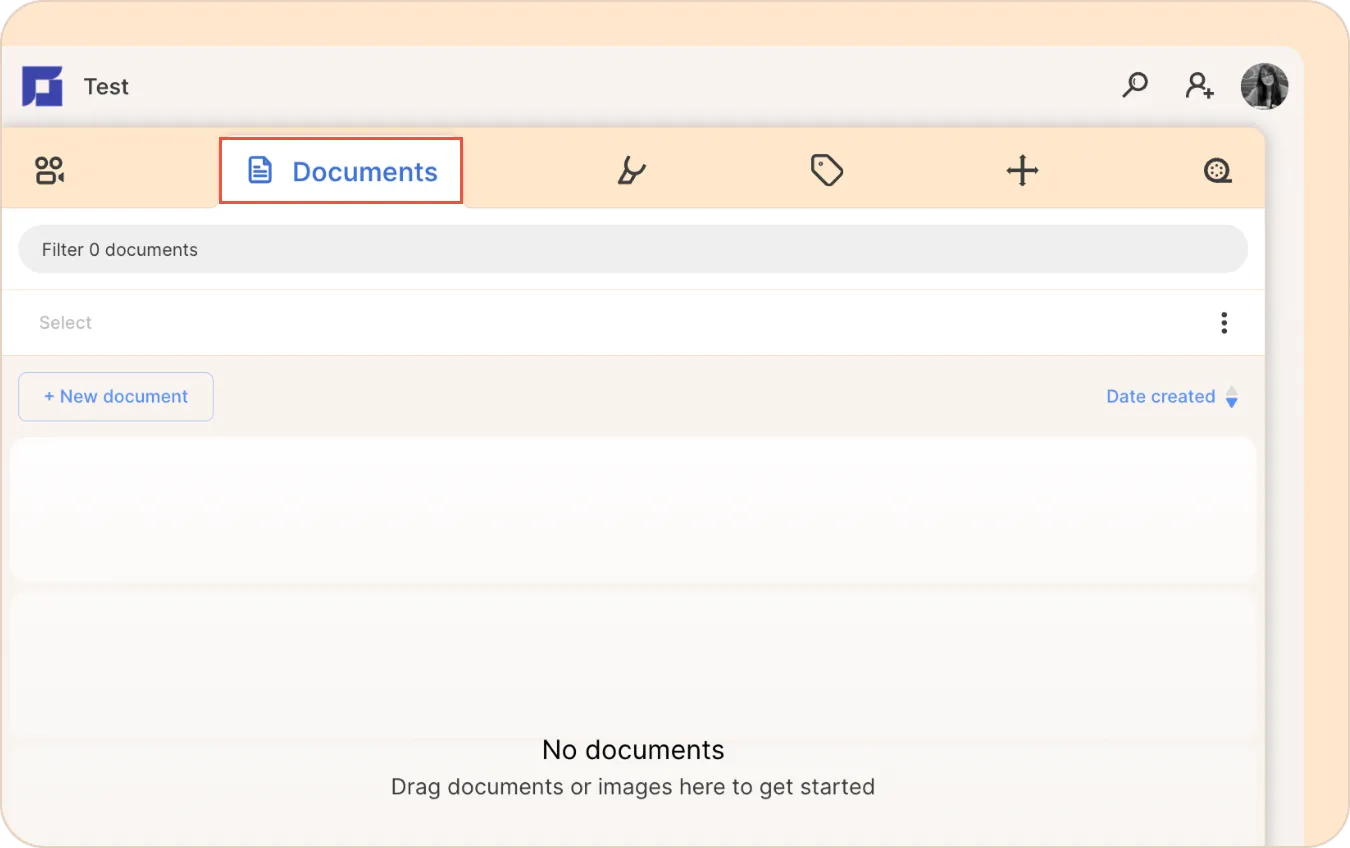
Document support is currently available to Enterprise customers only, at no additional cost through the end of 2026. If you don't see the Documents tab in your workspace, reach out to support@reduct.video.
Components of a document
- The Documents sidebar
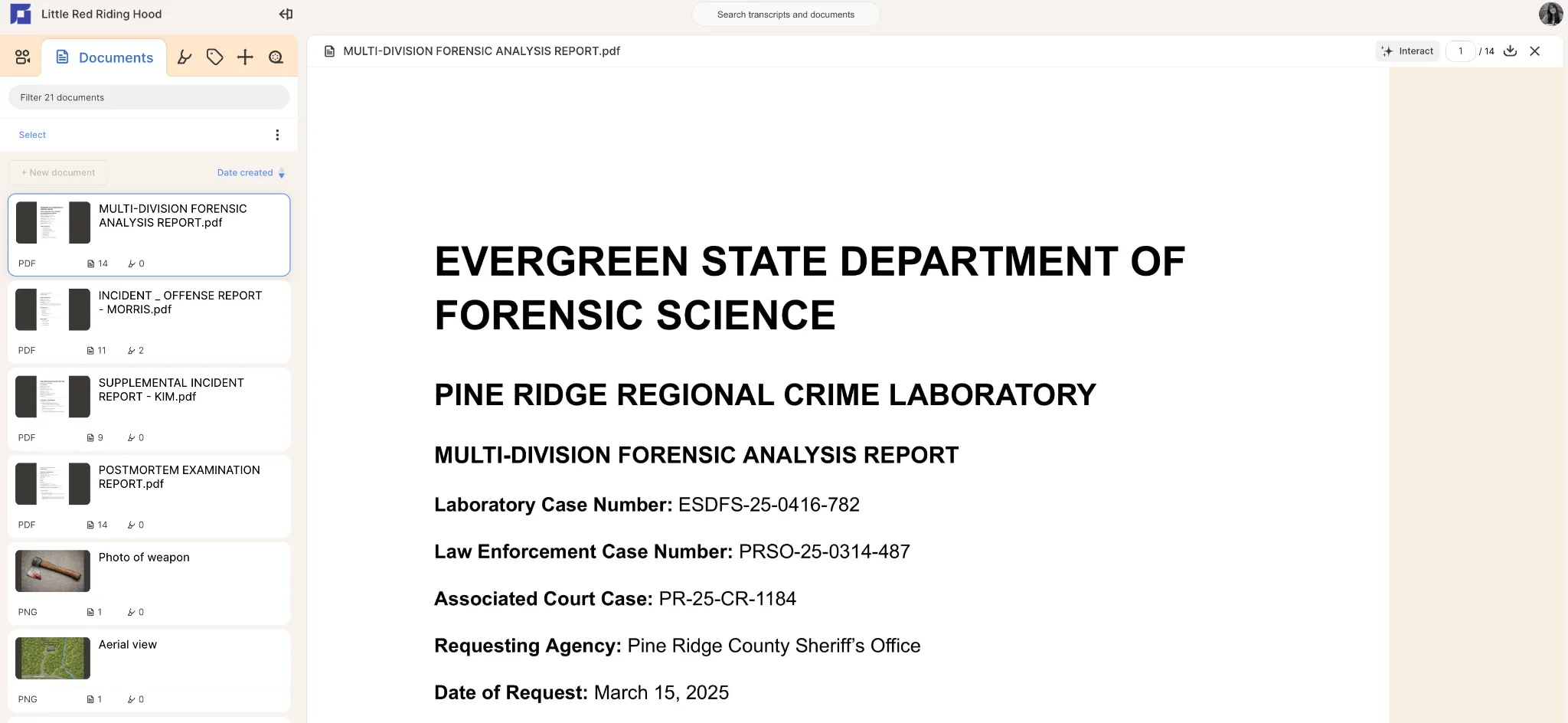
The left sidebar lists all documents in your project. Each entry shows:
- A thumbnail preview of the file
- The file name and format (PDF, PNG, etc.)
- The page count
- The number of highlights
- Document label

You can sort the list by Date created using the sort control at the top, and filter by label using the Filter documents bar.
To open a document, click on it in the sidebar. The selected document is highlighted in blue.
- The document viewer
When you click on a document in the left sidebar, it opens in the main panel.
You can select and highlight different sections in the document.
[one liner - capability - search, summarize, highlight, label, etc]
Multi-page documents
If your document has multiple pages, you can scroll through it continuously in the viewer.
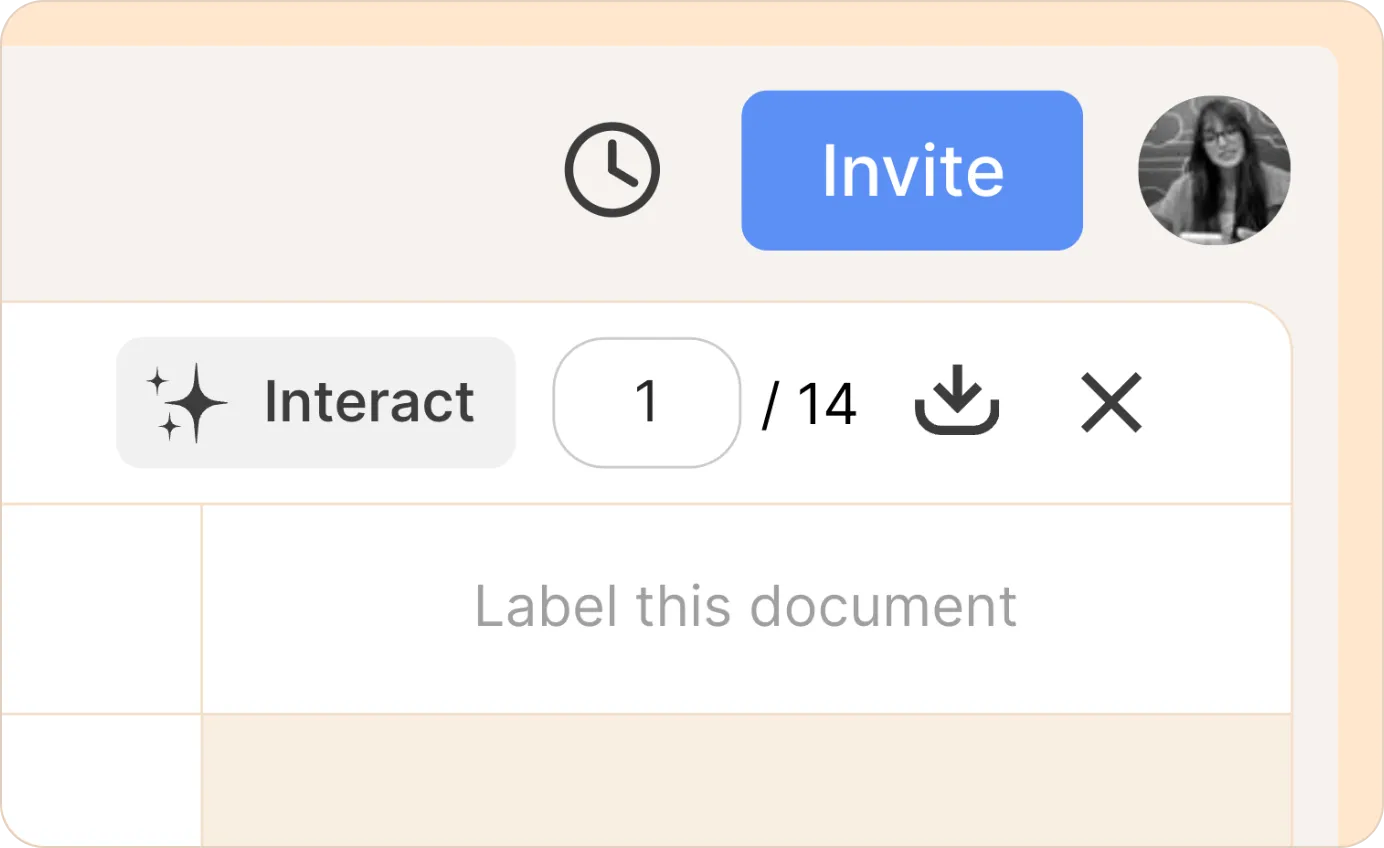
You can also jump to a specific page directly: click on the page number field in the top-right corner (shown as 1/14), type in the page number you want, and hit Enter.
- Description
You can add a description to any document to summarize what's inside, flag its relevance, or note key details like dates, participant names, case numbers, _____.
To add a description:
- Click on the Add a description field at the top of the document viewer.
- Start typing. The description is saved automatically.
[gif - Add a description button, add description]
3. Download
To download the original file, click the download icon in the top-right corner of the document viewer (next to the page counter).
[Screenshot: Image 2 — top-right toolbar with the download icon circled]